

How to Recover Password in digitalexchange.id App
Updated Short read Getting Started
Contents
How to reset your password via digitalexchange.id app:
- Open the digitalexchange.id app and tap "Sign In" on your mobile phone.
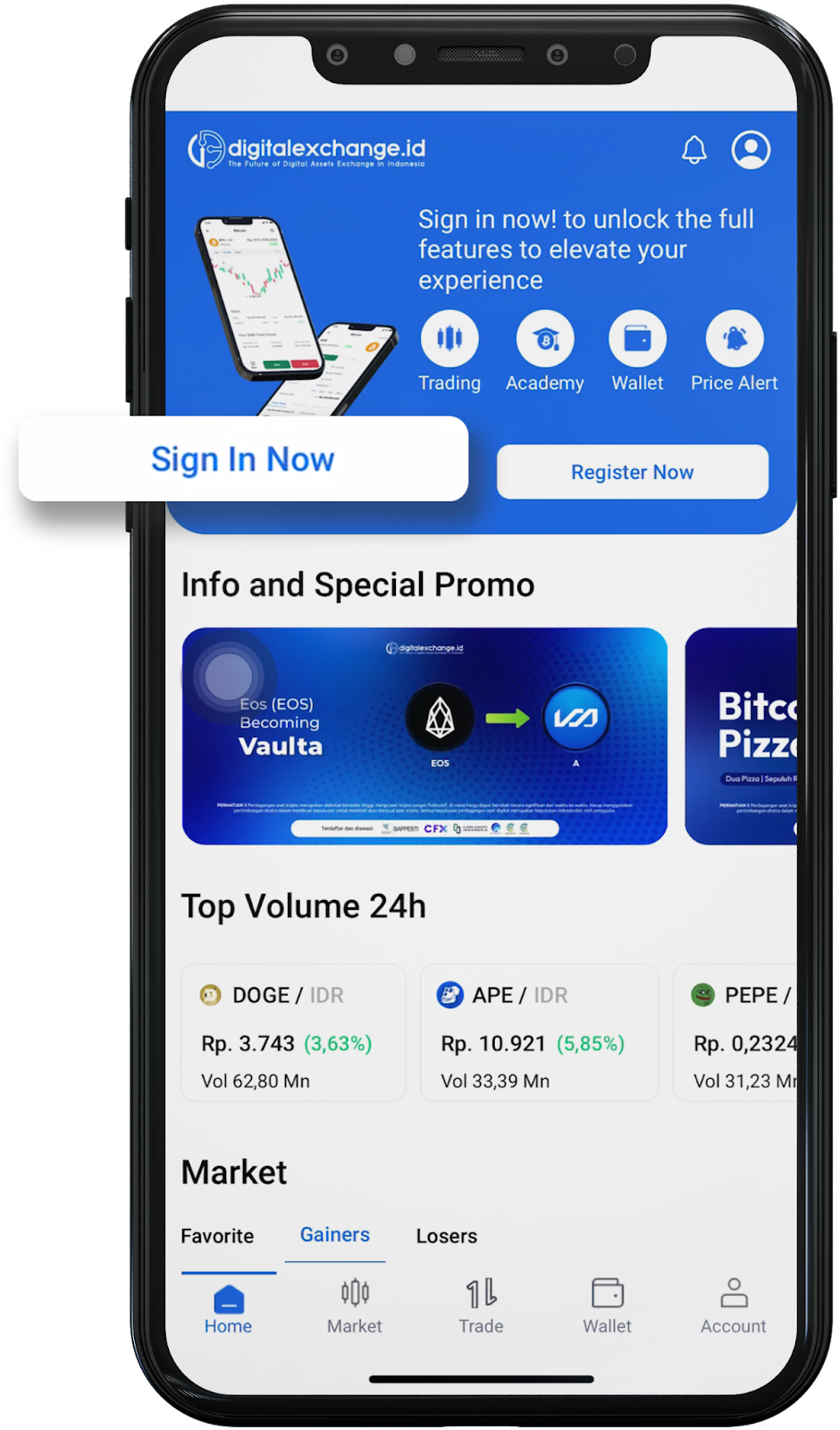
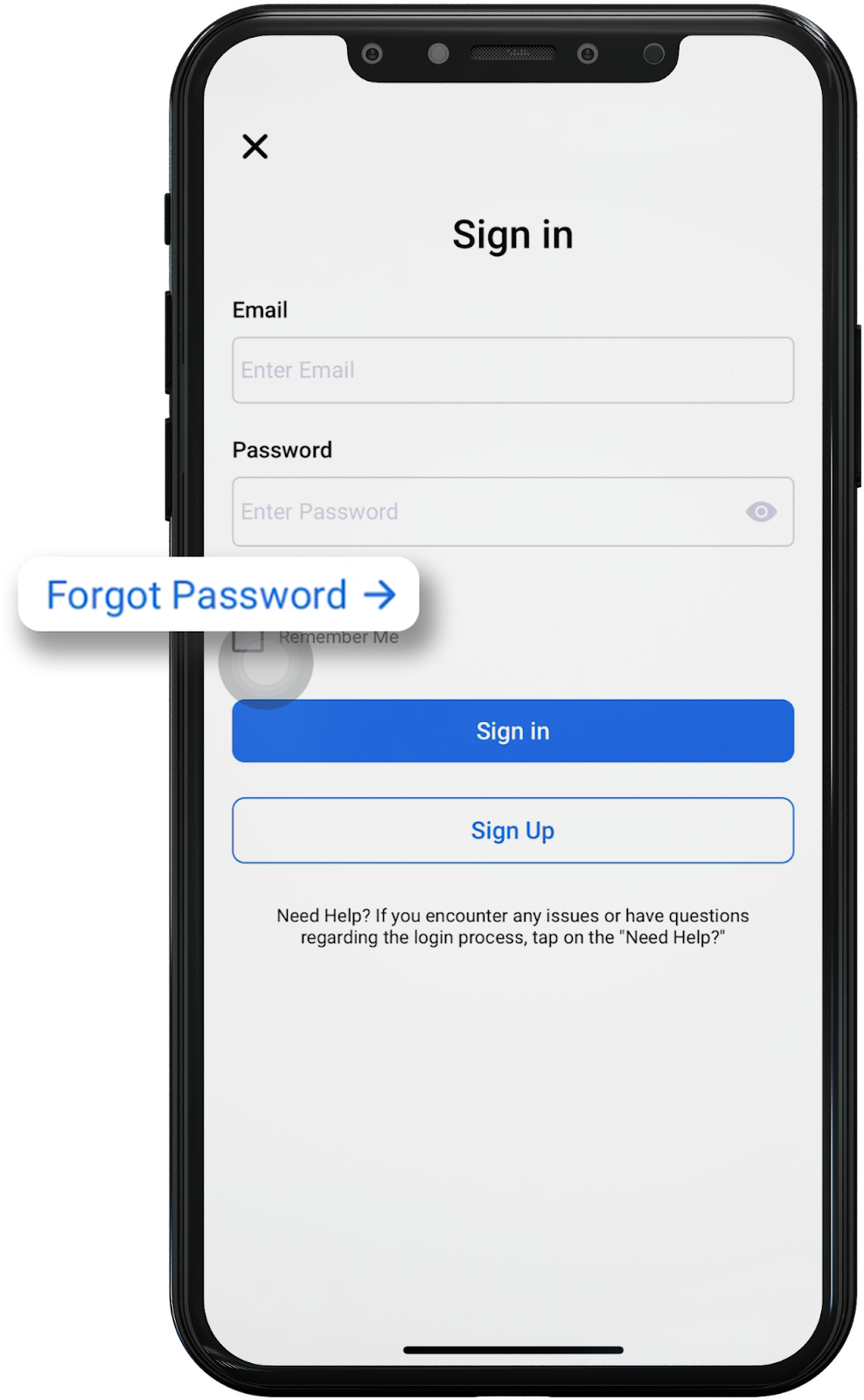
- On the sign in page, click "Forgot Password" at the bottom right of the Password column
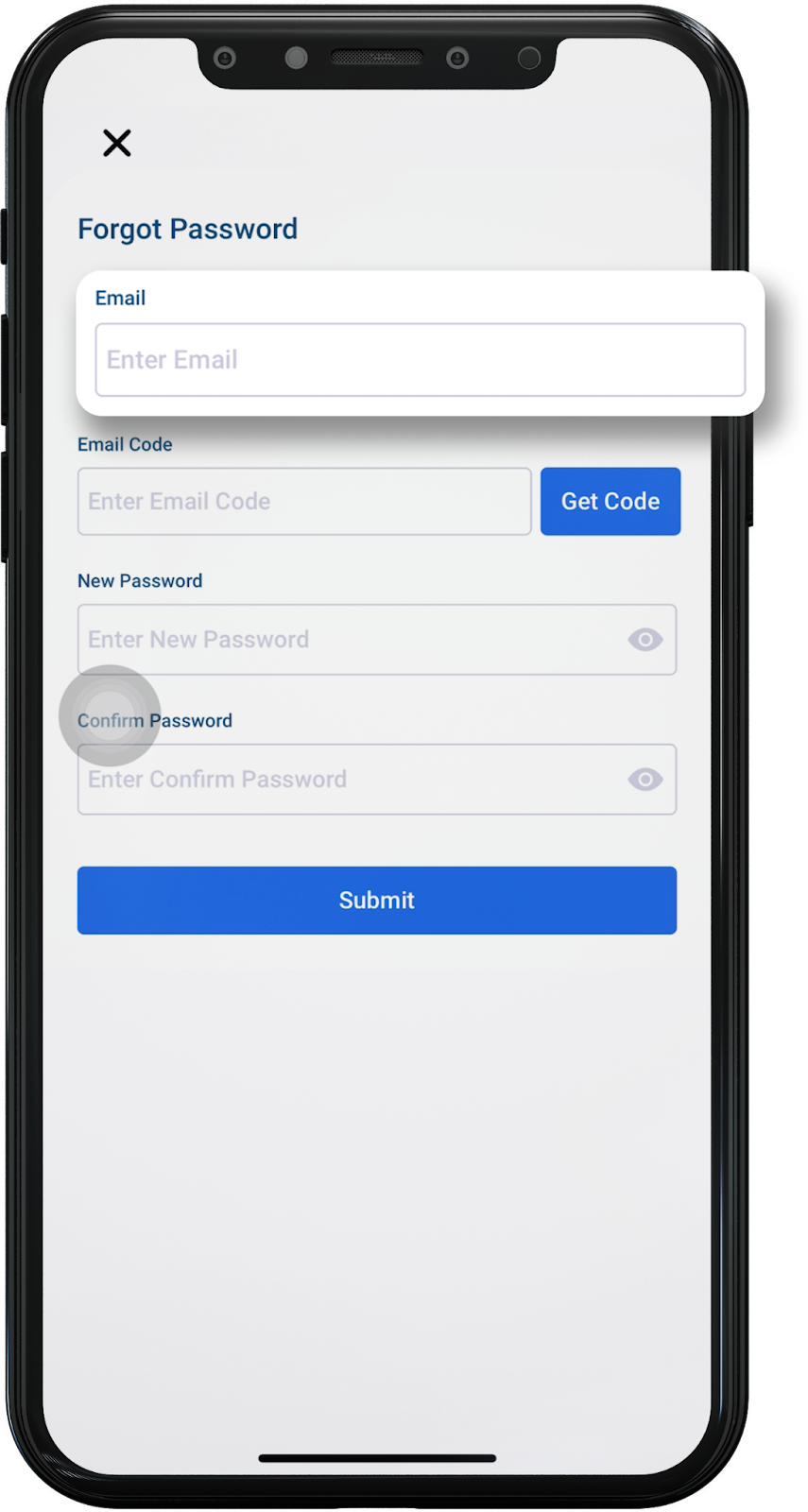
- After that, enter the email address you used to sign up for the digitalexchange.id app in the “Email” field.
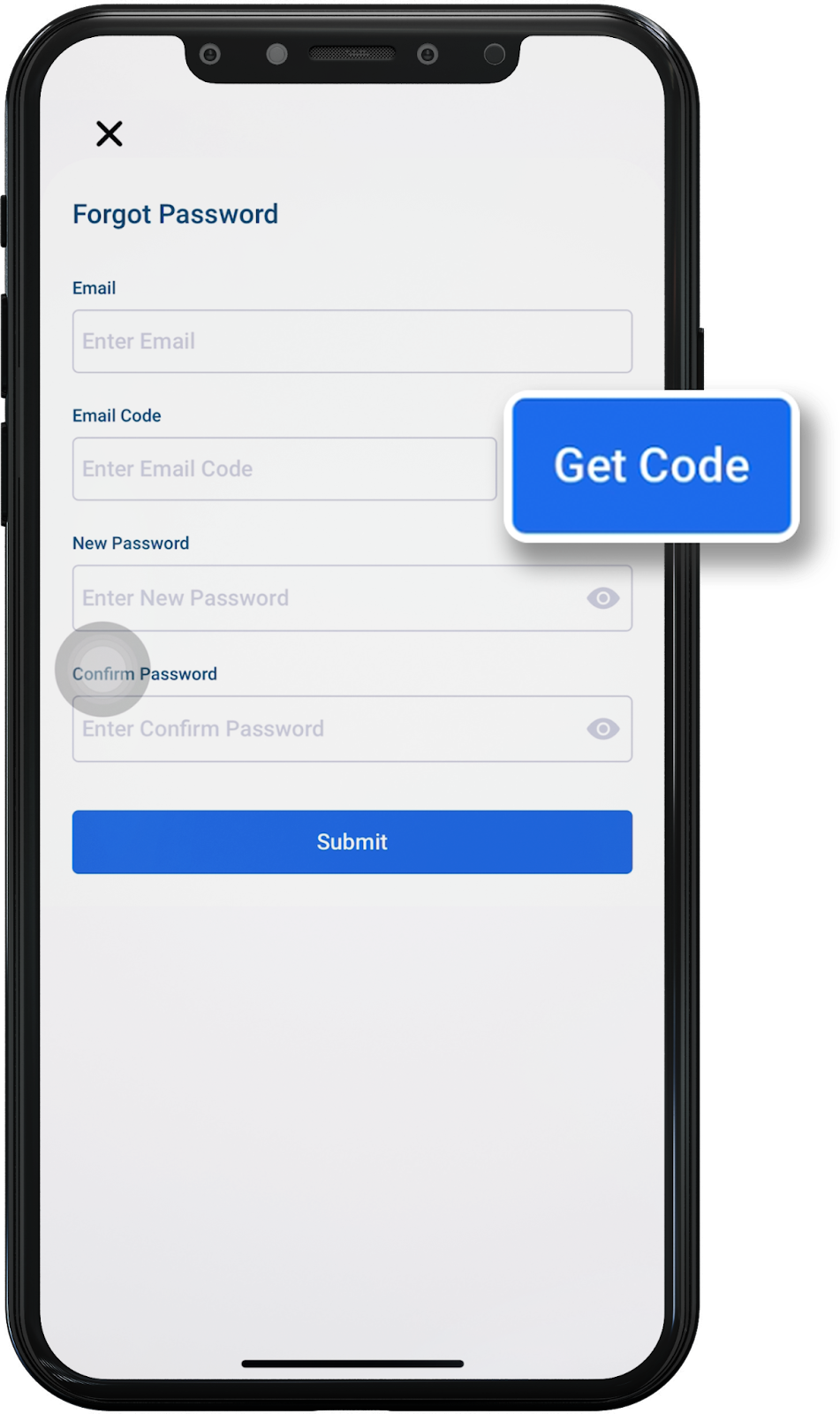
- Then, click the “Get Code” button to send the verification code to your email.
- After the code is sent, click the “Close” button to close the notification.
- Check your email from digitalexchange.id and copy the verification code you received.
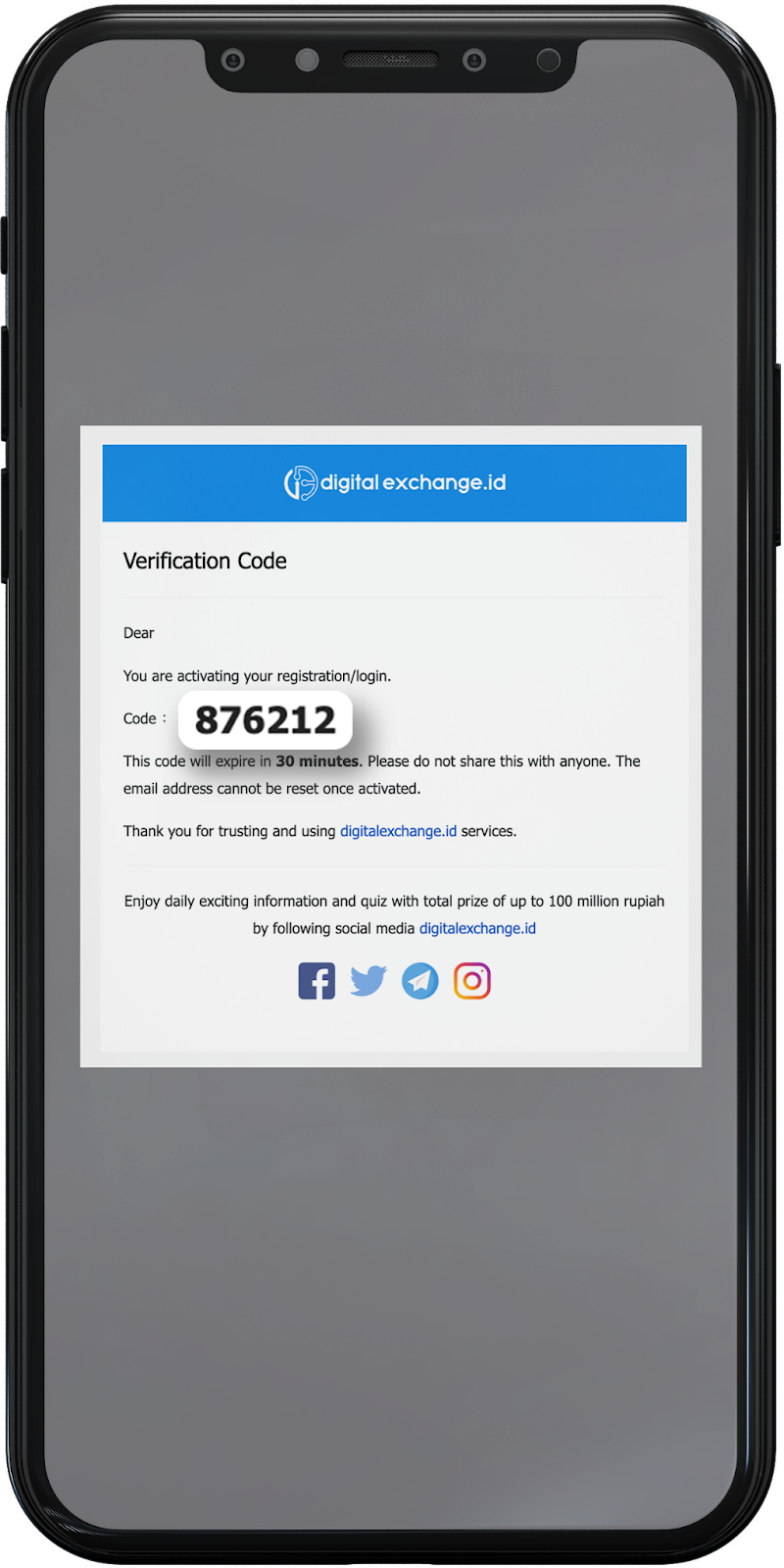
- After receiving the code via email, enter it into the “Email Code” field.
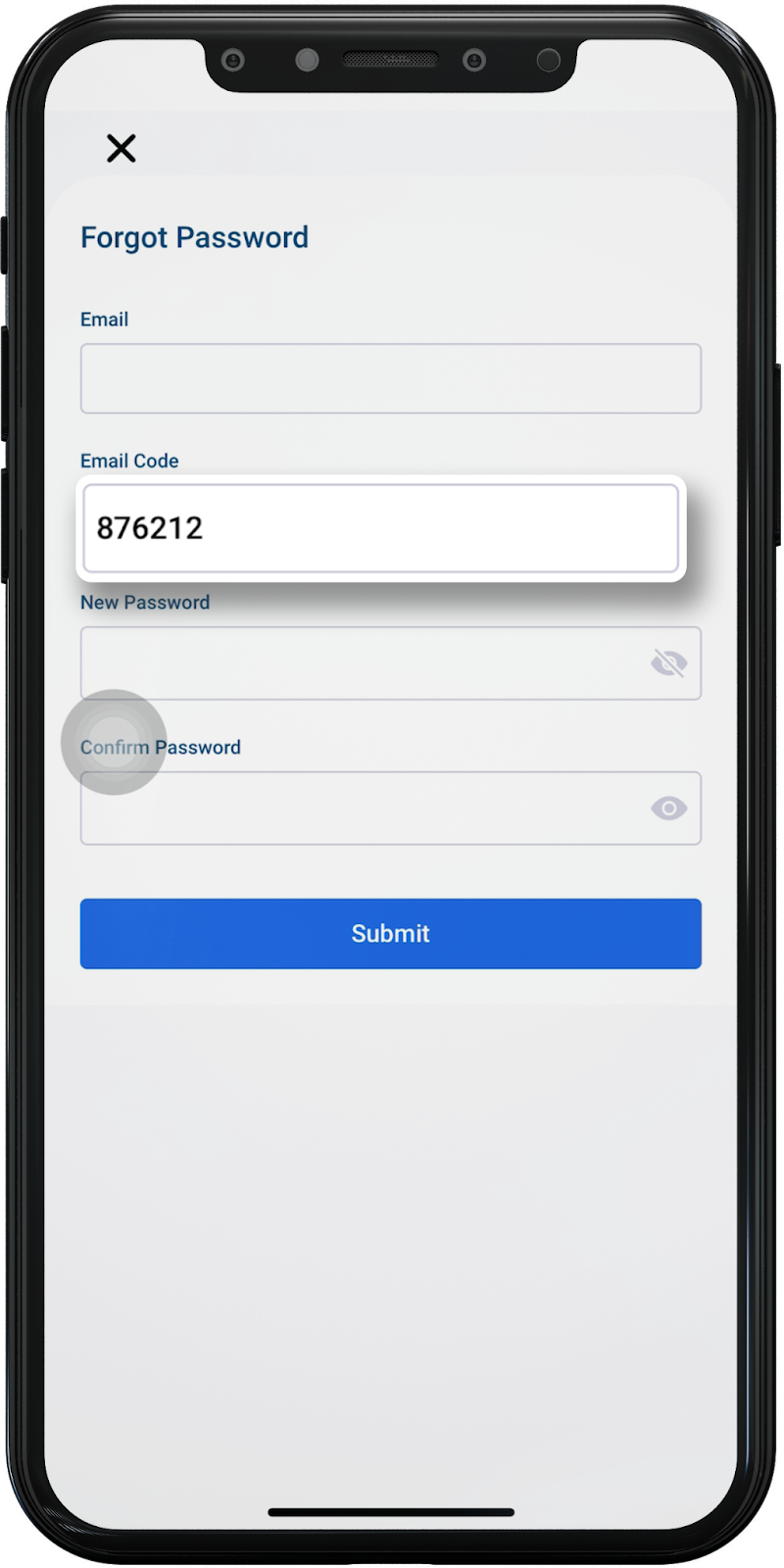
- Create a new password. When creating a password on digitalexchange.id, the password must consist these special symbols: !, @, *, #, $, %, ^, and & . Additionally, the password must meet these requirements: be 8–50 characters long and contain at least one uppercase letter, one lowercase letter, and one number. Then, re-enter the same password in the “Confirm Password” field to confirm.
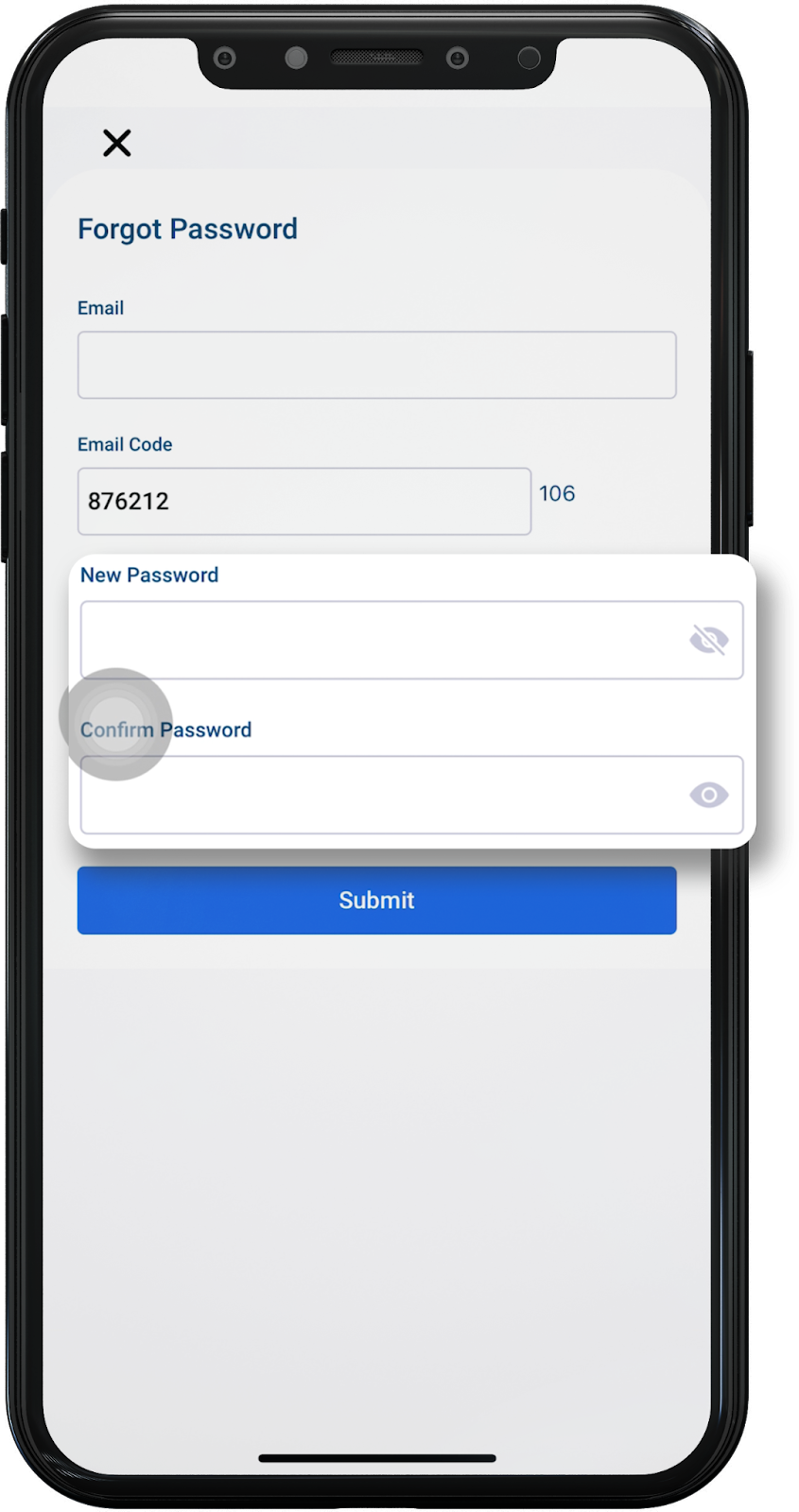
- Once all fields have been correctly filled in, click the “Submit” button to complete the password reset process.
- All done! Now you can log in with your new password.
Was this article helpful?